
The Grade - POWERGRADE PACK









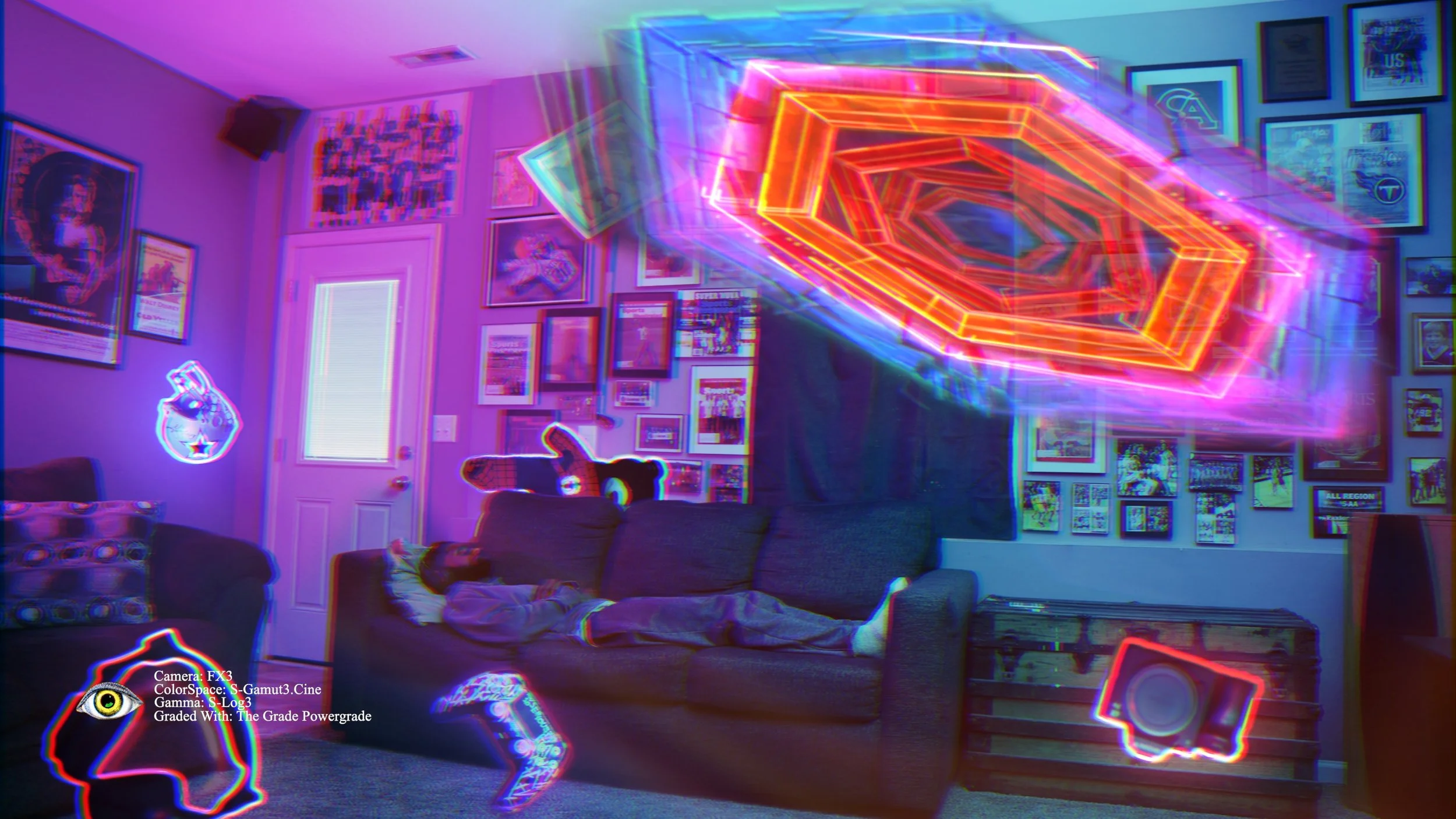
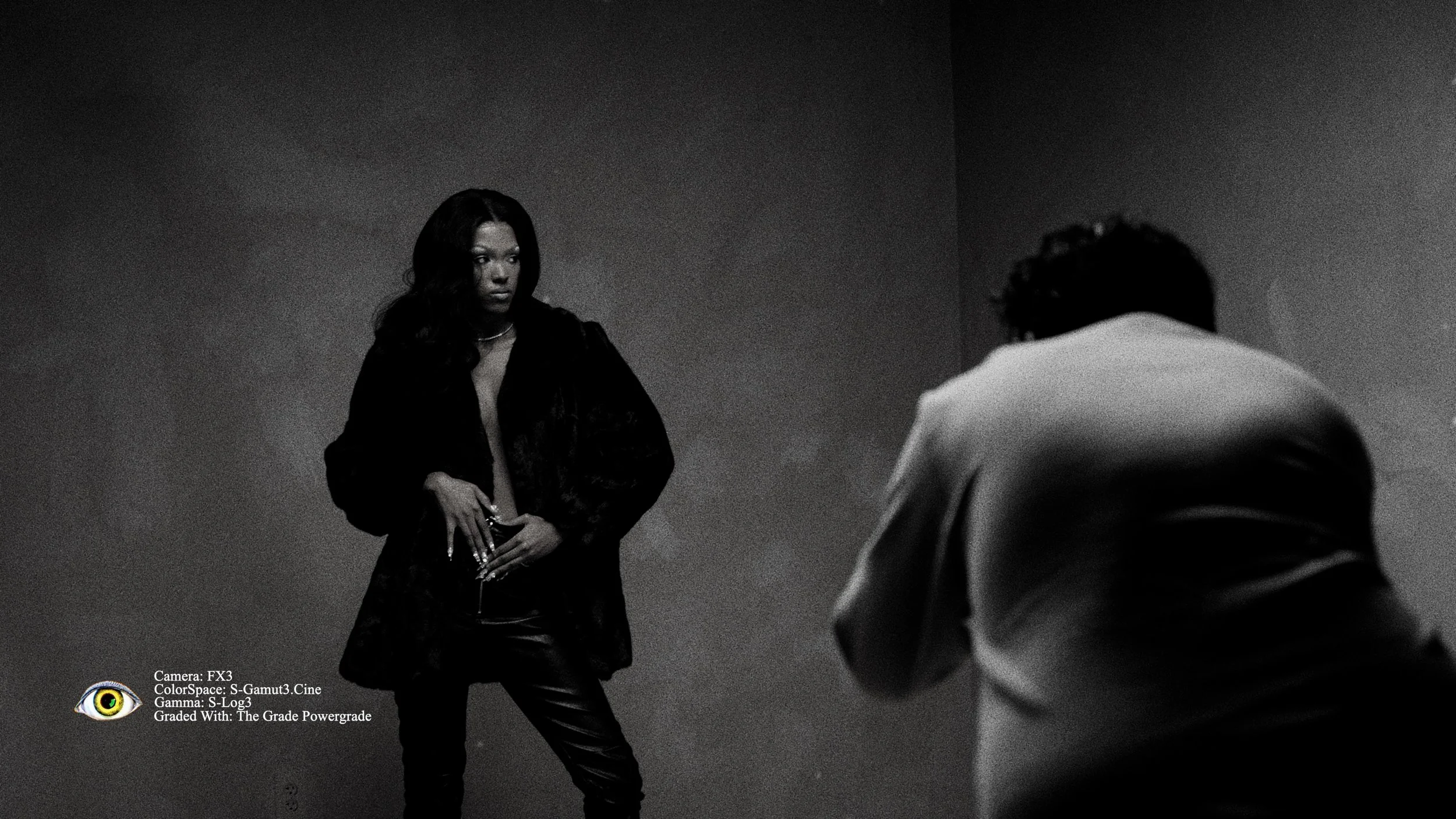

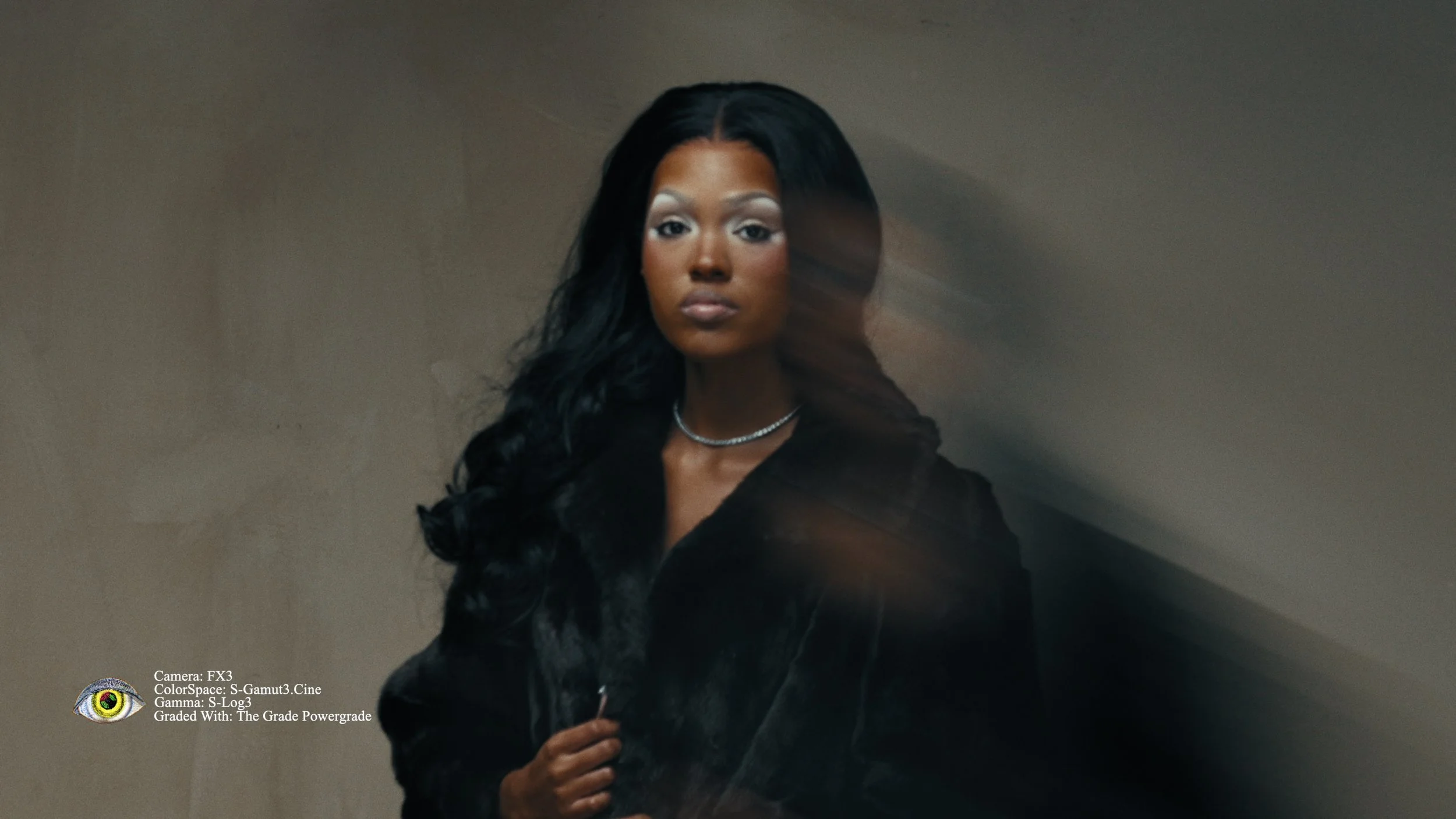


Zay's Aesthetics
The Grade — Powergrade Pack
Instant DownloadUSD · All sales final
What's Included
- DaVinci Resolve Powergrade files (.drx)
- Works with Resolve free & Studio
- Any camera · Any footage
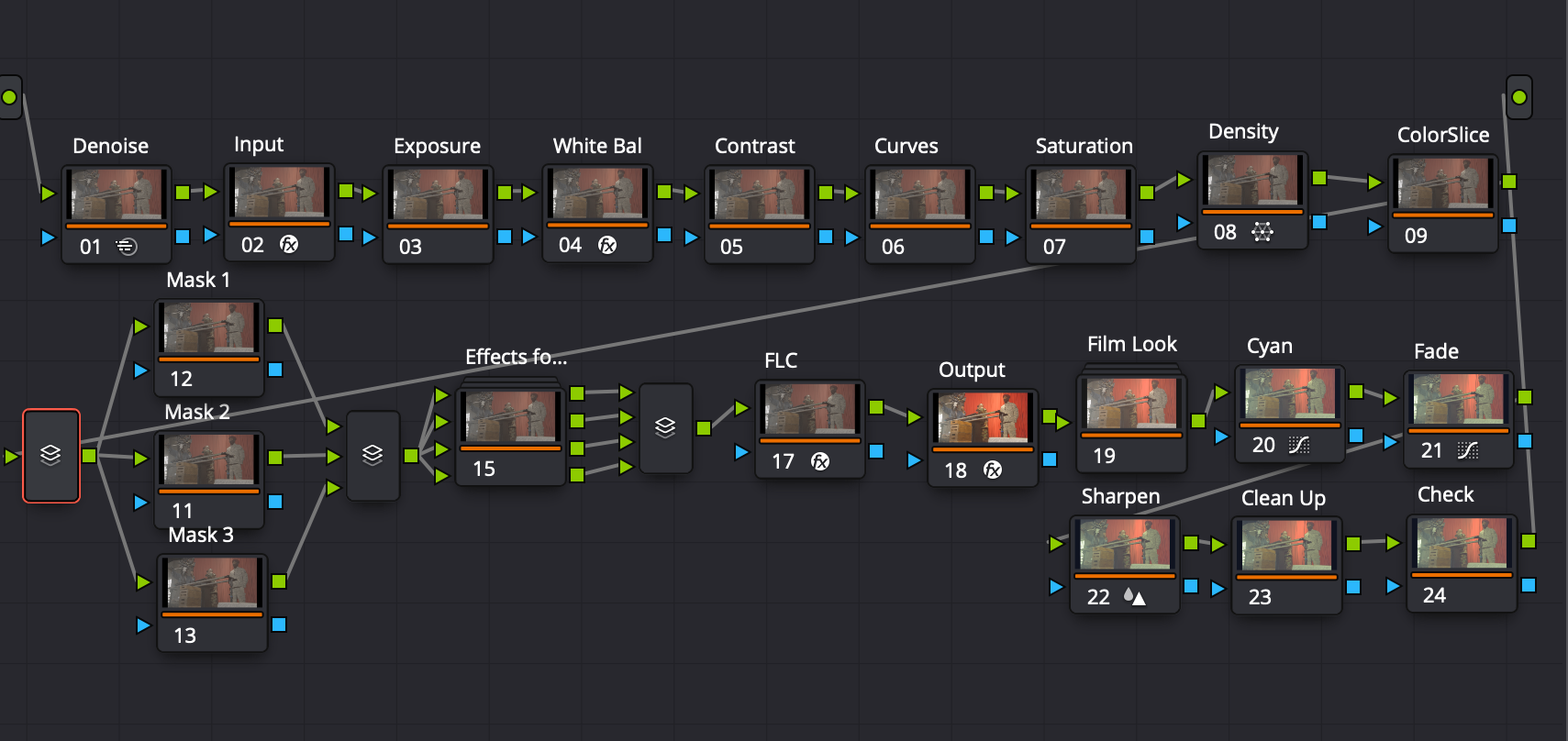
- Node Guide PDF
- Full install instructions
- No third party plugins required
Get the Powergrade Pack
Digital download · All sales final
Your FAQs — Written for The Grade
All sales are final. Due to the nature of digital downloads, no refunds are issued once the file has been delivered.
-
The Grade Powergrade works with any camera that shoots in a log format supported by DaVinci Resolve's Color Space Transform node. This includes:
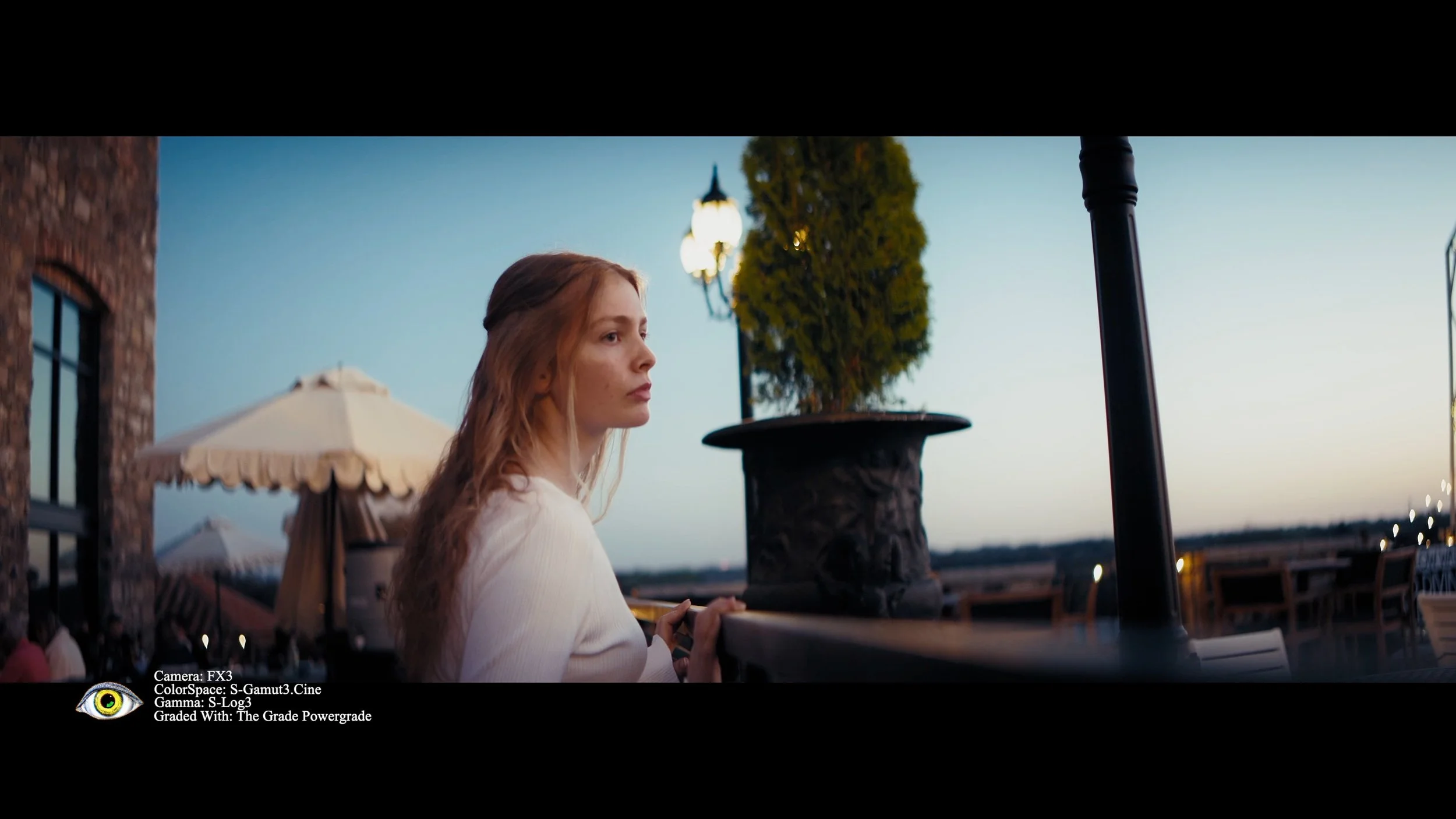
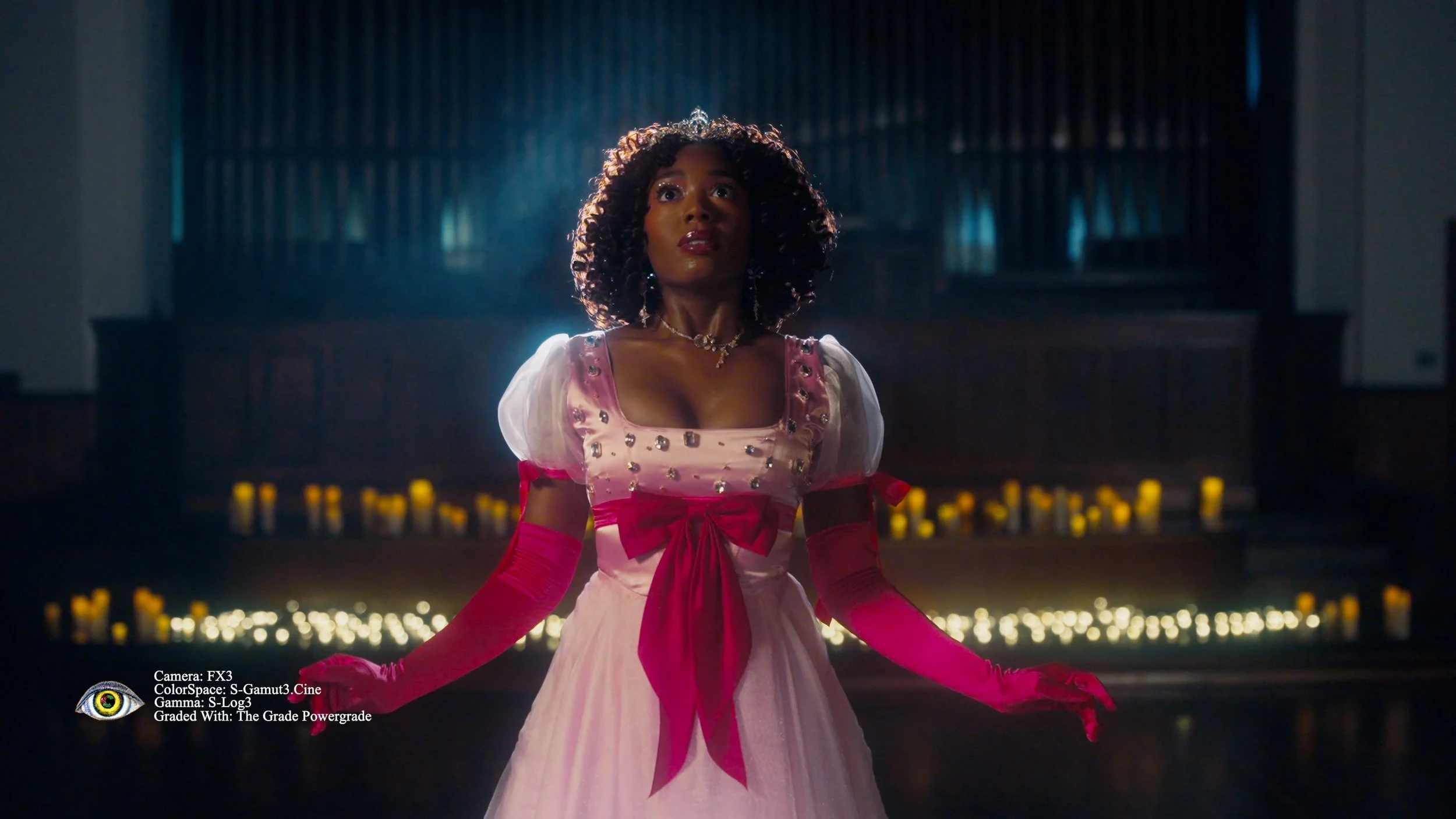
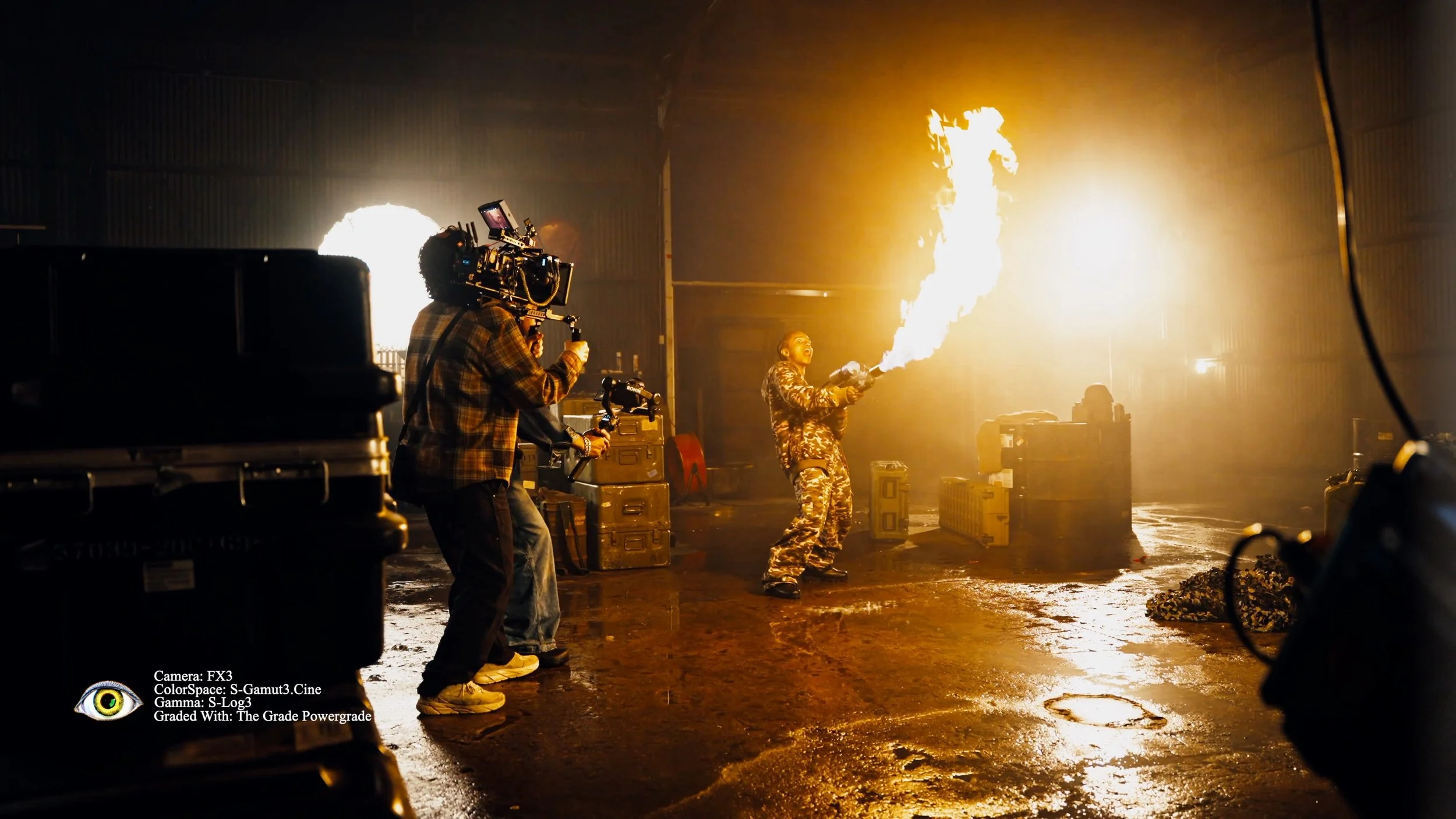
Sony — S-Gamut3.Cine / S-Log3 — S-Gamut3 / S-Log3 Canon — Cinema Gamut / C-Log3 — Cinema Gamut / C-Log2 ARRI — ARRI Wide Gamut / LogC3 Blackmagic — Blackmagic Wide Gamut / BMD Film Gen 5 DJI — D-Gamut / D-Log M Panasonic — V-Gamut / V-Log Fujifilm — F-Gamut / F-Log2 Nikon — REC.2020 / N-Log Apple iPhone — REC.2020 / Apple Log Already corrected Rec.709 footage — Rec.709 / Gamma 2.4
-
Some nodes in The Grade Powergrade — including Film Grain and halation from the Film Look Creator — require DaVinci Resolve Studio. The grade will load in the free version but will not work as designed. If you are on the free version, the LUT Pack is the right product for you — the LUTs work in every major editor.
-
Yes. The Grade LUTs are .cube files which are the industry standard format and work in every major editing platform — DaVinci Resolve, Premiere Pro, Final Cut Pro, CapCut and any other software that accepts a .cube file.
-
No. The Grade Powergrade is built entirely with DaVinci Resolve's native tools. Nothing extra to buy or install.
-
Powergrade Pack — all .drx Powergrade files, the Node Guide PDF and a README with full installation instructions. LUT Pack — all .cube LUT files, the LUT Guide PDF and a README with installation steps for every platform. Complete Bundle — everything from both packs plus both PDF guides. Free Powergrade — one .drx file and the Node Guide PDF.
-
Open DaVinci Resolve and go to the Color page. Open the Gallery with Command/Ctrl + G. Right-click inside the Stills panel and select Import. Navigate to the .drx file and select it. Your Powergrade will appear in the Gallery. Right-click it and select Apply Grade. Always correct your exposure and white balance before applying.
-
In DaVinci Resolve — add a serial node after your correction nodes, right-click it, select LUT then Browse, and navigate to your .cube file. Set Key Output Gain to 0.4–0.6 in the Key tab.
In Premiere Pro — Lumetri Color, Creative tab, Browse under Look, select your .cube file, set Intensity to 40–60%.
In Final Cut Pro — add the Custom LUT effect from the Effects browser, click Choose LUT in the Inspector, set the Mix slider to 40–60%.
In CapCut — Filter, Import, select your .cube file, set strength to 40–60%.
-
Yes — always. The Powergrade and LUTs are designed to work on correctly exposed and white-balanced footage. Apply your Color Space Transform first, then fix your exposure and white balance, and then apply the grade or LUT. Applying to uncorrected footage will always produce a result that looks wrong.
-
The Node Guide PDF included with the Powergrade walks through every single node in the grade — what it does, why it is there and how to adjust it for your specific footage. The LUT Guide PDF covers how LUTs work, how to apply them correctly in every platform and how to avoid the most common mistakes. Both guides are included in the Complete Bundle.
Have Questions?
Send them in here, and we will get back to you within 48 hours.